
Athletes and Entries
The two records you work with most: athletes (the roster) and entries (each athlete’s place in an event). This page covers the Athletes and Entries pages, numbering bibs, clearing bibs or results, duplicate athletes, entry statuses such as DNS and DNF, and relays.
Athletes and entries: what’s the difference
2Timer keeps people separate from the events they compete in:
- Athlete: the person: bib, name, gender, team, age, grade, city, wave, and other details.
- Entry: that athlete in one event and round: status, seed, heat, lane, result, and splits.
One athlete can have many entries. The bib belongs to the athlete, and an entry reaches its bib through the athlete.
The Athletes page
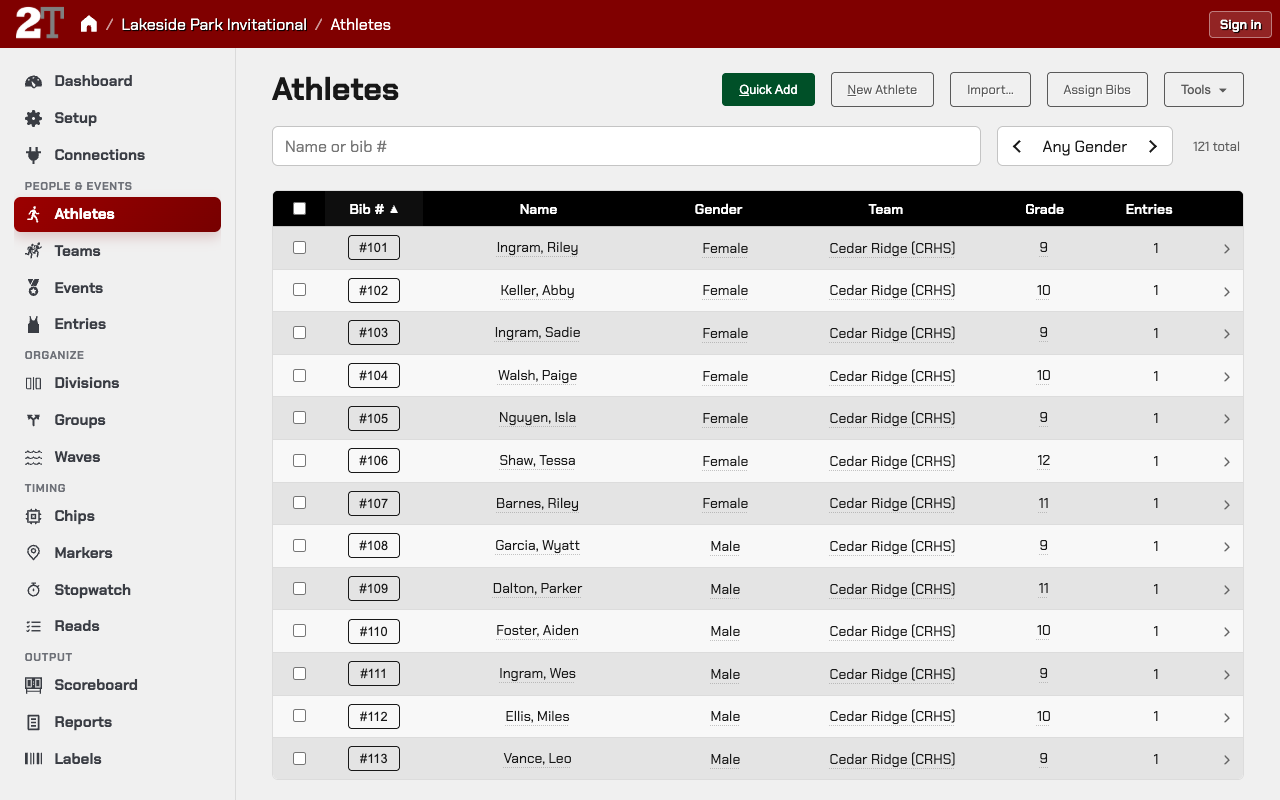
Open Athletes in the meet navigation. From there you can:
- Search by name, and filter by gender or bib.
- Edit bib, name, gender, team, city, grade, age, and wave right in the list.
- Add one athlete with Quick Add, or the full form with New Athlete.
- Load a roster with Import….
- Number the roster with Assign Bibs.
- Under Tools: Clear Bib Numbers…, and Generate Sample Athletes… for trying 2Timer out (Standard level only).
- With athletes selected: Add to Race…, Assign Team, or Delete.
Number the whole roster at once (Assign Bibs)
Assign Bibs on the Athletes page is the fastest way to number a roster. It is a three-step wizard, Configure, Review, Done, and nothing is saved until you apply it.
Choose who gets bibs, their order, and the number ranges
On the Assign Bibs Configure step:
Who to Assign
- Assignment Mode:
Fill missing bibsleaves existing numbers alone;Replace existing bib assignmentsrenumbers everyone in scope. The wizard warns you before a replacement. - Athletes Receiving Bibs:
Everyone on the roster, orOnly athletes entered in an event. For example, with 657 athletes on the roster but only 332 entered, chooseOnly athletes entered in an event. An athlete who is only on a wait list, or scratched from every event, does not count as entered and gets no bib. - Gender and Team narrow it further.
A live count shows how many athletes match.
Order By
Up to four sort keys, applied in order: Team / Affiliation, Last Name, First Name, Gender,
Age, or Grade. This decides who gets the low numbers. Sorting by team first gives each school
its own run of numbers.
Bib Number Ranges
Set one or more ranges to draw from. The wizard flags a range too small for the athletes in scope.
Renumbering athletes who already have race data
If renumbering would move an athlete off a bib that already has race data, Assign Bibs asks what should happen:
- Move race data to new bibs: entries and their results follow the athlete to the new bib. Reads and chips stay on their current bibs.
- Change athlete only: entries stay on their current bib and are unlinked from the athlete. Results, reads, and chips stay put.
Bibs belong to athletes, and entries reach a bib through the athlete, so renumbering mid-meet is a real decision, never a silent one.
Review and apply bib numbers
The Review step shows every change before anything is saved. Apply, and the Done step confirms the result. Assign Bibs can also be opened from the meet’s Data Issues page when bib problems are found.
Clear bib numbers to start the numbering over
To remove bib numbers from athletes, for example after numbering the wrong group, use Clear Bib Numbers:
- On Athletes, choose Tools → Clear Bib Numbers….
- Narrow it with Gender and Team Code, or leave both empty to clear every athlete’s bib.
- Press Preview Clear. It says how many athletes lose their bib and how many of their entries are affected.
- Press Clear Bibs and Detach Entries.
The athletes have no bib afterwards. Their entries keep the old bib numbers, with their results, reads, and chips, but are no longer linked to the athletes. Run Assign Bibs to number the athletes again. Clear Bib Numbers is offered at every experience level.
Remove a duplicate athlete (there is no merge)
2Timer has no “merge athletes” action. When the same runner is on the roster twice, for example “Maya Lopez” from registration and “Maya R Lopez” typed in on race morning:
- Decide which record to keep, usually the one with the right bib and the entries.
- On Athletes, select the extra record and press Delete.
- Choose what happens to the extra record’s entries:
- Keep the entries: only the link to the athlete is removed. Bibs, results, reads, chips, and other entry data stay.
- Delete the entries too: the entries are removed, and timing reads that pointed to them are ignored, so recalculating doesn’t bring them back.
- Open the meet’s Data Issues page and check Incomplete Entry Identities and Duplicate Athlete Bibs for anything left to link or fix.
If both records hold the same bib, Data Issues lists it under Duplicate Athlete Bibs, with Change Bib to give one of them a different bib.
Delete athletes
Select athletes on Athletes and press Delete. You choose Keep the entries, which removes only the link to the athlete, or Delete the entries too.
Enter selected athletes in a race (Add to Race…)
- On Athletes, select the athletes.
- Press Add to Race… and pick the race or division.
Each athlete is entered in the race their gender fits, so a mixed selection added to a division reaches both its girls’ and boys’ races in one step. Athletes who don’t fit are listed, not entered.
Team codes: why they matter
Athlete and relay team codes drive:
- cross country team scoring;
- track and field team scoring;
- the school shown for relays;
- league report splits and double-dual tools;
- team-lane seeding.
Inconsistent team codes make scores and reports look wrong even when the results are right. To keep a team from scoring, turn off its Scored? toggle on Teams rather than inventing a second team code.
The Entries page
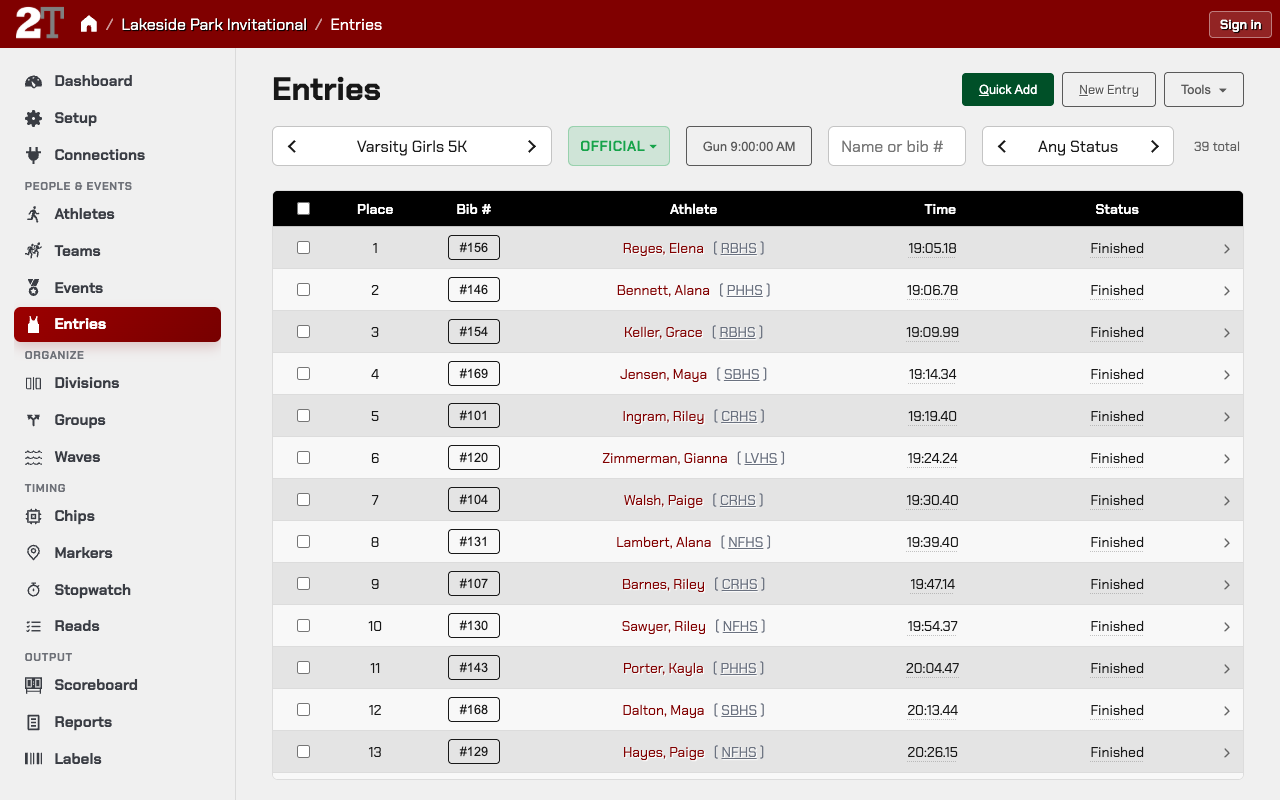
Open Entries and select an event; everything on the page is for that event. From there you can:
- Filter by round, heat, group, bib, or status.
- Change statuses, seeds, lanes, heats, times, field marks, and wind right in the list.
- Press Add time in a row to type a time.
- Click an entry’s bib to change who the entry belongs to (see “Change an entry’s bib on Entries”).
- Open the full entry form for relay legs, field-event series, splits, and the reason for a DQ.
- Add entries with Quick Add or New Entry.
- Delete selected entries with Delete (see “Delete entries”).
- Copy or move selected entries to another event with Transfer, and in a combined race (super-event) move them to a division’s event with Move to….
- Under Tools: Recalculate, Apply Bib Numbers…, Apply Times…, Stopwatch…, Clear Data…, and, at the Standard level, sample entries and results.
Identity warnings and import rows that need a decision stay on the meet’s Data Issues page until fixed or dismissed. A dismissed issue stays dismissed while the same cause remains; if the cause changes, it comes back. The meet dashboard says when data issues need review.
When a wind-eligible outdoor event is filtered to one heat, the Entries toolbar also shows the heat
wind. Blank shows as NWI; a saved reading shows with its sign, such as +1.20 m/s.
Change an entry’s bib on Entries (swap, merge, or give the finish)
Click an entry’s bib on Entries to see who owns the bib you’re about to give it. If that bib is already in the race, 2Timer asks you to choose:
- Swap identities: the two entries exchange athletes and bibs. Each keeps its own place, time, and status.
- Merge into the existing entry: offered when the entry you’re changing has no athlete. Its finish, if it has one, goes to the existing entry for that bib, and the unidentified entry is removed.
- Give this finish to the bib athlete: this finish becomes the result for that bib, and the other result is kept as unidentified for you to follow up.
Closing the dialog changes nothing.
In a track final, changing the bib to another athlete’s first says whose entry it is and asks why the new athlete is in the final; swapping, merging, or giving the finish keeps each athlete’s reason for being in the final. See Seeding and Advancement.
Delete entries
Select entries on Entries and press Delete. The dialog says how many entries go and what goes
with them, such as timing reads that will be marked ignored. Type DELETE and the number of entries,
such as DELETE 1 or DELETE 16, and press Delete. Capital letters don’t matter; the number
must be exact. Edit Entry has no delete button, like the other edit screens.
Deleting a track prelim entry of an athlete who is in the final says so: “Maya Chen is in the Finals. The Finals entry stays but will no longer have a Prelims result.”
Clear times, places, or bibs from a race (Clear Data)
To undo part of a race without purging the meet, use Clear Data on Entries:
- Select the race.
- Choose Tools → Clear Data… to clear everything in the current view. To clear only some entries, select them and press Clear instead.
- Pick one:
- Clear times: removes times and splits. Places, bibs, and athletes stay.
- Clear timing and place: removes times, splits, and places. Bibs and athletes stay.
- Clear identities: removes bibs and athletes from the entries so you can reassign or re-import them. Times and places stay.
- Delete rows: removes the entries completely. This can’t be undone, so it asks you to type
DELETEand the number of entries first.
- Confirm.
It clears every entry in scope, or none: if one entry can’t be cleared, nothing changes, and the dialog says which entry stopped it and why. Places are recalculated afterwards.
Clear Data doesn’t delete timing reads. On a chip-timed race, Recalculate builds times again from the reads; to remove the reads as well, use Purge results… (see Purging Results and Resetting State). Before Clear identities, the dialog says how many timing reads are recorded under the bibs being removed. In a combined race, times and places are cleared on the super-event, not on each division’s event.
Add an athlete to an event
- Open Entries.
- Select the event.
- Press Quick Add or New Entry.
- Pick the athlete and check the round, heat, and seed if needed.
To enter many athletes at once, use Add to Race… on Athletes.
Adding an athlete to a track final records why: an athlete the rule qualifies goes in By place or By time, an athlete who missed the cut is asked why (an alternate, or advanced by the referee or the Jury of Appeal), and an athlete with no prelim entry is confirmed as a bye. See Seeding and Advancement.
Copy or move entries to another event (Transfer)
To put the same runners in another event, for example to copy everyone in the Mile into the 1600 and keep them in the Mile too:
- On Entries, select the event the entries are in.
- Select the entries. Select all to take everyone in the list.
- Press Transfer.
- Choose Copy to add them to the other event and keep them here too, or Move to take them out of this event. Then choose the Destination event.
- The dialog says how many entries will be copied or moved, and lists any it can’t take. An athlete or bib already entered in that event and round is skipped.
- Press Copy or Move.
A copied entry starts as Entered, with no time, place, or result. A moved entry keeps its result, but not its flags, which belonged to the event it left.
In a track event with rounds, a Finals entry can’t be moved or copied, and a Prelims entry can’t be moved while the athlete is in the Finals; the dialog says why, such as “Maya Chen is in the 100 m Finals. Remove Maya Chen from the Finals first.”
Update entry status
Use the status control in the entry’s row on Entries, or in the entry form. For example, Maya
Lopez withdrew from the 1600 the day before: set her entry to Scratched, and she gets no place. A
runner who was on the start list and never came to the line is Did Not Start, and one who started
but dropped out is Did Not Finish.
The statuses offered depend on the event: road and cross country races, timed track events, and field events don’t all use the same set.
| Status | Short | Offered for |
|---|---|---|
Entered |
E | Everything (the default) |
Checked In |
CI | Everything |
Started |
s | Everything |
Finished |
f | Everything |
Did Not Finish |
DNF | Road / cross country, timed track |
Did Not Start |
DNS | Everything but a multi-event |
Disqualified |
DQ | Everything |
False Start |
FS | Timed track only |
Scratched |
SCR | Everything |
No Result |
NR (prints NT, NM, NH) | Everything |
Wait List |
WL | Everything |
A registration that isn’t confirmed yet, such as an unpaid one, comes in as Entered. Started means the athlete left the blocks or
crossed the start line but has no result yet. No Result is an athlete who finished with no place
and no time or mark, such as a runner whose finish position nobody recorded or a thrower with three
fouls; results print it as NT, NM, or NH. A Finished athlete, by contrast, always has a place,
even without a time. Wait List is an athlete waiting for a spot: seeding leaves them out of the
heats.
In a track prelim whose final is already seeded, a status change can move an athlete across the cut. Undoing Gianna’s DQ, say, can make the rule pick her in place of a finalist; Edit Entry asks before saving whether both run (Gianna advanced by the Jury of Appeal) or the faster result takes the spot. See Seeding and Advancement.
Did Not Finish, Did Not Start, Disqualified, False Start, Scratched, No Result, and
Wait List get no place. The rest can place. Only Finished and Disqualified keep a time or
mark: setting another of these statuses on an entry with a result removes it, after 2Timer tells
you. See Results and Reports.
Give the reason for a DQ
When you set an entry to Disqualified, 2Timer asks why. Buttons above the note box offer the usual
reasons for that kind of event. Clicking one fills the box but doesn’t save. Clicking another
replaces the text, and you can edit it, add to it, or type your own reason. You can also leave the
box blank: Save DQ works either way. The window is the same at every experience level.
For example, Nora Patel gets three red cards for bent knee in the 1500 m race walk. Set her to
Disqualified, click Bent knee (>), and save. Her line on the results sheet reads
DQ 8:42.17 Bent knee (>). She keeps her time and gets no place.
| Kind of event | Reasons offered |
|---|---|
| Race walk | Loss of contact (~) · Bent knee (>) · Loss of contact and bent knee (~ >) · Chief Judge, final 100 m |
| Sprints and hurdles run in lanes | Lane violation · Hurdle violation (hurdles only) |
| Relays | Exchange outside the zone · Lane violation (relays run in lanes) |
| Distance races on a track | Obstruction · Left the track · Steeplechase barrier or water jump (steeplechase only) |
| Cross country and road races | Cut the course · Unauthorized assistance · Obstruction |
| Field events | Only the reasons for every event |
| Every event | Unsportsmanlike conduct · Uniform or jewelry · Ineligible |
A sprinter whose start blocks show a reaction under 0.100 is also offered False start (reaction
time). That athlete ran the race, so they’re Disqualified and keep the time, not False Start.
The reasons carry no rule numbers, because NFHS, USATF, NCAA, and World Athletics number their rules differently. To add one, click a reason and type the number after it.
The reason is the entry’s Official Note. It prints in the results report’s Note column and
goes to live results. On the entry form, the same buttons show under Status and Official Note at the top of the Result card whenever the status is Disqualified.
Mark a record or a best (Flags)
The Flags box on Edit Entry holds short symbols about the result itself: a meet record
(MR), a personal or season best (PB, SB), a standard met. Separate them with spaces or commas;
each word is one flag. Gianna’s final, typed MR, PB or MR PB, prints 12.31 MR PB on the
results sheet, the Entries screen, and live results.
- Flags belong to one round’s result. A flag on a prelim doesn’t follow the athlete into the final.
- A result that can’t place keeps its flags but doesn’t print them. Set Gianna to
Disqualifiedby mistake and the box greys out with “Flags don’t print while Gianna Rossi’s result is DQ.”; set her back toFinishedandMR PBprints again. - On a prelim, the box refuses
Q,q,qD,qR, andqJ, because 2Timer prints those from who is in the final (see Seeding and Advancement). On a final, a cross country race, or a road race, aQyou type is your own flag, such as a state qualifier.
If you change a DQ back to another status, 2Timer tells you the note will be removed, for example “Nora Patel’s note ‘Bent knee (>)’ will be removed.” Removing it is already chosen. Tick Keep note to keep it instead.
A DQ that comes in from a timing file, such as a FinishLynx or FlashTiming LIF file, never asks for a reason. Those files have no reason column. Open the entry afterward and pick one. Importing the same file again keeps the reason you added.
Foul, pass, and a missed height are recorded per attempt in the field input grid. See Field Events.
Enter a result by hand
- A time: on Entries, press Add time in the row, or open the entry and type it in Time (Manual Time on a road or cross country meet). 2Timer places the entry by that time. On a road race with a start mat that places by net time, the Entries column is Net Time and can’t be typed in, since net time comes from the start and finish; type the time into the entry’s Manual Time instead.
- A field mark: use the field input grid. See Field Events.
- A place: open the entry and check Override at the right edge of Overall Place, then type the place. Without it the place is Auto-calculated from the results and can’t be typed.
Override on the place box freezes the entry: 2Timer stops recalculating its place, and timing reads and imports no longer change its time or status. The line under the box says which you have: Auto-calculated or Set by hand. Use it only when you are setting the place yourself, from the photo or a referee, and want it to stay. Checking it alone keeps the place the entry has now. Uncheck it to give the place back to the results; saving recalculates it. For a typed time, leave it off so the entry is placed.
An entry’s group, gender place, and group place
2Timer puts each finisher in one group, the first that takes them, and works out their place in it. The entry form shows it read-only:
- Group, in the Entry card, with a line saying where it came from: From the overall finish for a pull-out group such as Women Overall, or From the athlete’s age (or grade) for an age group. To put a runner in a different age group, fix their age, grade, or gender on their athlete page; the line links there. A new entry says Decided when placed.
- Group place, beside Overall Place, named for the group: Women 40–49 place 2.
- Gender place, only on a Mixed event such as a road race, named for the gender: Women place 5. On an event for one gender it would repeat the overall place, so it isn’t shown.
Times on a road or cross country entry
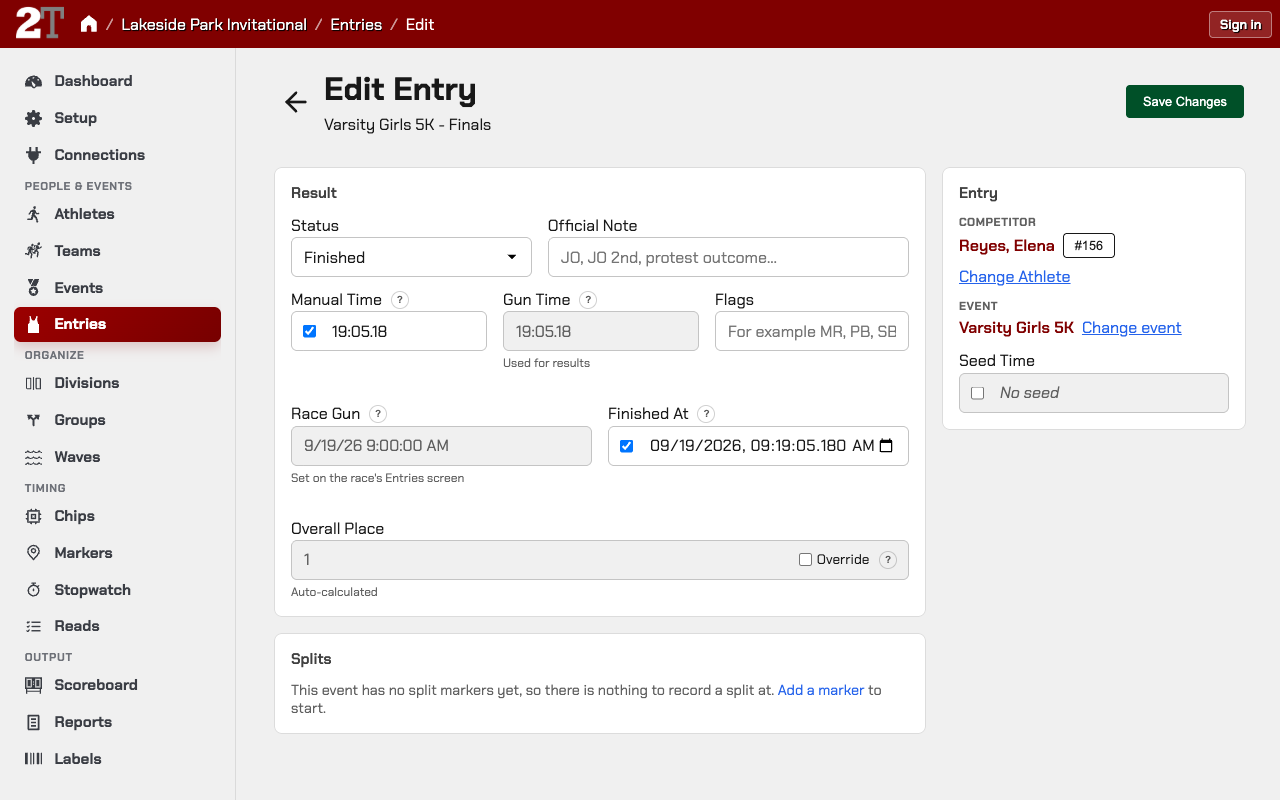
Open a road or cross country entry and the Result card shows every time it holds, each one labelled for what it is. Each label’s ? says where its time comes from.
- Manual Time: a time entered by hand: typed here, pasted into a finish order, or taken with the stopwatch. It’s used instead of the timing times beside it, and timing never replaces it, even when reads are recalculated or the gun changes. Clear it to go back to timing. Timing reads never fill it, so a runner timed only by chip reads has it empty.
- Gun Time: Finished At minus the Race Gun.
- Net Time: Finished At minus Started At, also called chip time.
- Race Gun: when the race started. It belongs to the whole race, so it is read-only here. Record or change it with the Gun control on the race’s Entries screen.
- Started At and Finished At: when the athlete crossed the start mat and the finish.
Which time counts. The line under a time says what results use it for, following Setup → Scoring (Meet Setup). A road meet places by net time unless you change it.
- Used for results: overall places and group places both use this time.
- Typed time, used instead of timing: under a Manual Time you typed on an entry that also has timing.
- Used for overall place or Used for group place: the meet places them differently, for example overall by gun time and age groups by net time.
- …, minus the 2:00 wave delay at the end of a line: the athlete’s wave started after the gun, so their gun time counts with the delay taken off. Net time never has a delay taken off; it already counts from the athlete’s own start.
Cross country places by gun time.
Example: Maya’s chip read gives 22:21, and the finish video shows she crossed at 22:18. Type 22:18 into Manual Time. It now says Typed time, used instead of timing and stays, while Gun Time beside it keeps showing the read’s 22:21.
When a time can’t be worked out. If Finished At or the Race Gun is missing, the box shows the time saved on the entry, for example from an import, and says which is missing, such as Saved time (no Finished At). If the race’s gun was recorded on a different day, or after this finish, Gun Time stays empty and a warning names the gun with a Change the gun button. Fix the gun on the race, and 2Timer works the gun times out again from the timing reads.
When Started At and Net Time show. They appear together when the race has a start mat, meaning a timing connection’s Read Routing sends a reader to the race’s Start marker, or when the entry has a start time of its own, such as one you typed. Otherwise only Gun Time shows: with no start mat, a runner’s net time is their gun time less any wave delay, so there is nothing else to show. A start time the entry already has is never cleared. A cross country race with a start mat shows Net Time for reference, marked Not used for results. See Markers and Reads for whether you need a start mat.
A runner the start mat missed. A runner who stepped around the mat, or whose chip it didn’t read, has no start of their own. Their net time counts from their wave’s start (the gun, with no waves), and their Net Time says No start read, so this counts from the wave’s start. The race’s Entries screen lists them under No start read, each bib opening the entry. If a backup mat or the video shows when they crossed, type it into Started At.
Relay entries
A relay is an entry, not an athlete. Each relay entry has a Team code and a Squad letter (A, B, or blank), its round and heat, and its relay legs when they’re recorded.
Make sure the relay’s team code is the intended team, so reports and scoring line up. If a relay should appear in results but not count toward team scoring, turn off its team’s Scored? toggle on Teams. See Relays.
Combined races and events with rounds
- On Entries, the selected event decides what you’re editing.
- In a combined race (super-event), entries belong to each division’s event, and timing, review, and results status are done on the super-event. See Super-Events.
- In a track event with rounds, pick the round before changing seeds, heats, or statuses.
Keeping athlete data clean
- Keep bib numbers unique.
- Use team codes consistently, without small spelling differences for the same school.
- Import first, then clean up in the list. Avoid mixing lots of hand entry with repeated re-imports.
- Use Athletes for facts about the person and Entries for facts about the event.
An athlete is on the roster but not in the results
The athlete has no entry in that event. Add one on Entries with Quick Add, use Add to Race… on Athletes, or import the entries. A result recorded on a bib that no athlete has shows in results without a name until an athlete is given that bib.
Athletes and entries: checklist
- The athlete count matches the expected roster.
- Every athlete who needs a bib has one.
- Teams are assigned before scoring and relay setup.
- Teams that shouldn’t score have Scored? off on Teams.
- Each event has the expected number of entries.
- Override is checked on a place only where you set the place yourself.
- Relay entries have the right team code and squad letter.
Related Pages
- Getting Started
- Importing Data
- Meet Setup
- Teams and Leagues
- Track and Field
- Super-Events
- Seeding and Advancement
- Purging Results and Resetting State
Metadata
- Last Updated: 2026-10-21
- Document Version: 1.0
- Status: Active