
Results and Reports
Where results live in 2Timer and how to get them out. You check and correct results on Entries, make results official there, print or download formatted reports from Reports, export files from the meet dashboard’s Export menu, and publish continuously through a results connection.
Where to see results during a meet
There is no separate Results page. Times, marks, places, statuses, and whether a round’s results are Unofficial, Under Review, or Official are all on Entries, with the event selected. Wherever race-day instructions say “results”, they mean that screen.
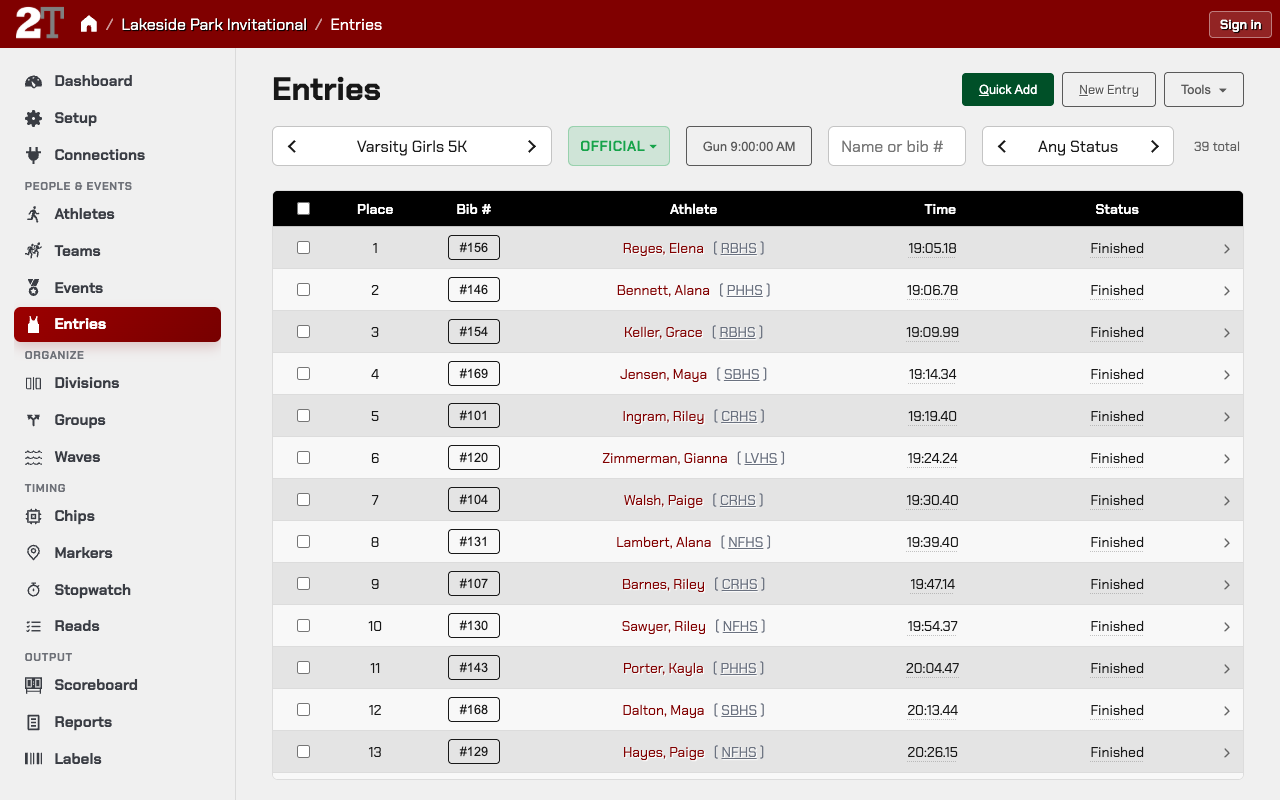
2Timer places each kind of event its own way:
- Running: by gun time or chip (net) time, whichever Overall place is set to on Setup.
- Field events: by marks. Horizontal jumps and throws use the full series of legal marks to break ties. Vertical jumps use misses and attempts before any jump-off.
- Team scores: worked out for cross country and track and field reports.
In a combined race (a super-event), the super-event shows each finisher’s place in the combined race, and each division’s event shows places within that event, worked out from the combined order. Team scores use the division places. See Super-Events.
Make results official (Unofficial, Under Review, Official)
Every round’s results are Unofficial, Under Review, or Official. To set it yourself:
- Open Entries and select the event (and the round, for prelims and finals).
- Once every entry in the round has a place or a final status (such as Did Not Start), the round’s status chip becomes a dropdown. Before that it shows the round’s progress, such as Started.
- Choose Official, Under Review, or Unofficial.
Once you’ve set a round’s status, the dropdown stays even if a change reopens the round, such as a late entry or a cleared time. You can then move an Official round back to Under Review while you sort it out.
In a combined race, the status is set on the super-event, and each division’s event shows it.
Results go to live results sites and scoreboards with their status, and a connection set to send official results only waits for Official.
Results go official by themselves after the quiet period
You don’t have to mark every round official by hand. Once a round is complete, its results turn Official by themselves after a quiet period with no changes. On Entries the status chip says, for example, “Goes official in about 12 minutes unless it changes”. If the meet has a live results site, its card on Connections lists every round going official in the next 15 minutes; each name opens that round, where Under Review holds it.
- Set the quiet period on Setup, under Results Status: Results go official after, in minutes. It is 30 minutes unless you change it.
- Turn it off by setting it to 0. Results then stay Unofficial until you mark them Official.
- Any correction restarts the clock. Changing a time, place, or status in the round starts the quiet period again.
- A correction after Official puts the round back to Unofficial, and the clock runs again from the correction, so a changed result never keeps claiming to be final.
At the Basic level, a track and field meet’s Setup doesn’t show this setting; the meet keeps 30 minutes.
Stop results from going official while you check something (Under Review)
If a result is protested or you need to check the finish video, set the round to Under Review on Entries. Under Review holds the round as long as you leave it: the quiet period doesn’t make it Official. Set it to Official or Unofficial when you are done.
Entry statuses: DNS, DNF, DQ, No Result, and who gets a place
| Status | Short | Meaning | Gets a place? |
|---|---|---|---|
Entered |
E | Registered and eligible to compete (the default) | Yes |
Checked In |
CI | Confirmed present at the meet | Yes |
Started |
s | Crossed the start line, no result yet | Yes |
Finished |
f | Finished, and always placed: by time or mark, by a recorded finish order, or by a place you type | Yes |
Did Not Finish |
DNF | Started but didn’t finish. Road, XC, and timed track | No |
Did Not Start |
DNS | Never started: never crossed the start line, or never took an attempt. Every event but a multi-event | No |
Disqualified |
DQ | Rule violation. Keeps its time or mark, which prints on results | No |
False Start |
FS | Charged with a false start when the starter recalled the field. Timed track only | No |
Scratched |
SCR | Withdrew before the event started | No |
No Result |
NT, NM, NH | Finished, but with no place and no time or mark: nobody knows where the runner finished, or a field athlete has no valid mark | No |
Wait List |
WL | Not entered yet, waiting for a spot. Never keeps a round from completing | No |
Not every status is offered for every event: the set depends on whether the event is a road or cross country race, a timed track event, or a field event. To set one, see Athletes and Entries.
Finished and No Result differ on place. A Finished athlete always has a place, even with no
time: the place can come from a recorded finish order or a place you type. A No Result athlete
never has a place, a time, or a mark: the runner finished but nobody knows where, or the thrower or
jumper finished with no valid mark.
No Result prints NT, NM, or NH, never NR. Results show NT for a race, NM for a throw or horizontal jump, and NH for a vertical jump, because NR on a results sheet reads as National Record. In a multi-event, No Result scores no points for that event and the athlete carries on. An imported NT, NM, NH, or “no time” is No Result. If a time or mark is recorded for a No Result or Wait List entry afterwards, it becomes Finished and is placed.
Only Finished and DQ keep a time or mark. A DQ’s time still prints, and removing the DQ puts the athlete back in the place that time earns. DNF, DNS, SCR, FS, and No Result keep none:
- Setting one of them by hand on an entry with a result removes it, and 2Timer tells you first: “Marcus Lee has 13.88. Setting DNS removes it.” The same goes for setting an entry back to Entered, Checked In, Started, or Wait List: you’re saying the athlete hasn’t finished, so the time goes. On Edit Entry the time box empties as soon as you pick the status, and picking Finished or DQ again before you save brings it back.
- A results file that gives one of them with a time is imported without the time, and Import Review says so: “Marcus Lee is DNS in this file; its time 13.88 was not kept.” A DNS with a time often means a bib mix-up, so check it.
- A timing read that arrives for a runner already marked DNF, DNS, SCR, or FS isn’t put on the entry. The read stays on Reads as Contradicts Status; change the status if the runner did finish.
A false start that nobody caught at the start, found afterwards from the start blocks, is a DQ: that runner ran the race and keeps the time.
Splits follow the same rule. A false start keeps no splits, because the race it was charged in was recalled: setting FS, or importing it, removes the entry’s splits, and a split read that arrives for it stays on Reads as Contradicts Status. A DQ keeps its splits along with its time. A DNF keeps the splits of the distance it covered.
A Finished athlete always has a place. If a finisher has no time, no recorded finish position, and no typed place, the round can’t complete. Entries names them under Needs a place — “Leah Carter is marked Finished but has no time or place.” — and the dashboard does too once nothing is waiting to start. Give them a place, or set No Result, DNF, or another status. Their place prints blank until then.
In prelims run in several heats and ranked across heats by time, a finisher the finish order placed in a heat but who has no time can’t be ranked against the other heats, so the round waits for the time. Needs a place says so: “Jordan Lee finished 4th in heat 3 but has no time to rank against the other heats.” Enter the time (a hand time is fine) or set No Result.
Foul, pass, and a missed height are attempt results in a field event, recorded in the field input grid. See Field Events.
The Reports page
Open Reports in the meet navigation. Each report is a card:
- View opens the report on screen, where you can print or download it.
- Customize changes what it shows before you view it.
- Saved templates also have Edit and Delete.
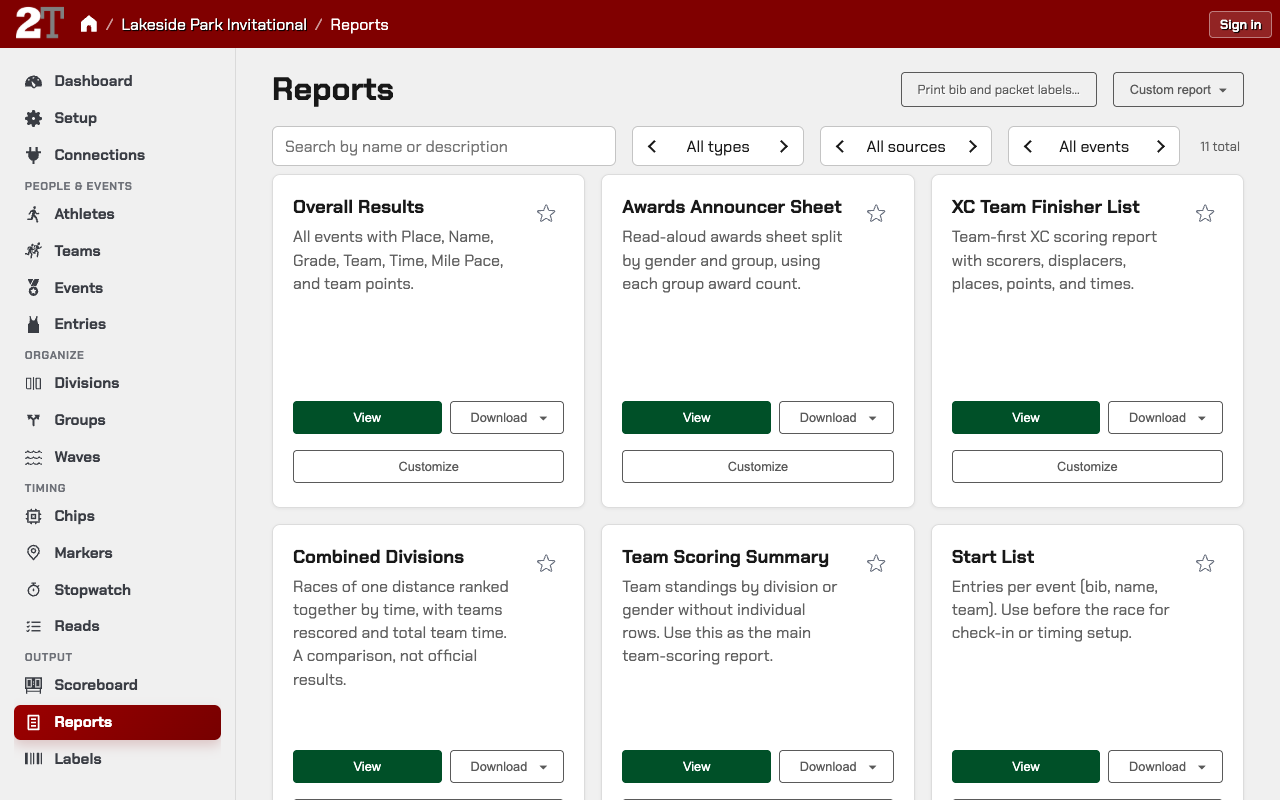
Above the list you can search by name or description, and filter by report type, by source (all, built-in, custom, or favorites), and by event. The event filter applies to every report you open.
The header also has Print bib and packet labels…, which opens Labels, and Custom report for building your own.
At the Basic level, Reports shows a shorter list for your sport, without the filters or Custom report.
Built-in reports by sport
The reports offered depend on the meet’s sport. Among them:
- Every sport: Overall Results, Results by Gender, Group Results, Start List, Participant Roster, Team Bib Packets, Awards Announcer Sheet, Order of Events, Starter Sheet, Timer Checklist.
- Cross country: XC Team Finisher List, Team Scoring Summary, and Combined Divisions (a comparison of division races; see Cross Country Scoring).
- Track and field: Team Scoring Summary, MVP Report, Track MVP Report, Field MVP Report, Performance List, Finish Line Sheets, Field Event Sheets, Meet Program / Heat Sheets, Check-In Report, and Session Program / Session List.
At the Basic level some of these are left off the list.
Customize a results report
On a results report’s card, press Customize. The choices include:
- Scope: which Events, Teams, and Divisions; on track meets, Finals only and Completed only.
- Grouping: Split by gender, group, division, and so on; each part is placed and team-scored on its own. Cross country also offers Races: Each race on its own, or Combine races of the same distance to rank the chosen races together for comparison only, with a preview of what will be compared.
- Team scores: Show team scores, Team standings columns (such as Total time), and Include non-scoring teams. Cross country also offers Rank teams by (Points or Team time) and List runners under each team. See Cross Country Scoring.
- Display: Columns, Name format, Top N places (empty prints every place), Result statuses (placers only, or also DNF, DQ, FS, and No Result, or DNS and SCR too), Bib display, and Pace / speed format.
At the Basic level, Customize offers scope, split by, top N places, columns, and name format.
Show mile pace or kilometer pace on results
Cross country results show Mile Pace after the time by default. To add pace to another results report, or to change the unit:
- On Reports, press Customize on the results report.
- Under Columns, add Pace / speed.
- Under Pace / speed format, choose Minutes per mile, Minutes per kilometer, Miles per hour, Kilometers per hour, or Meters per second.
Pace is the official result time divided by the event’s distance. If you changed a course’s distance with Adjust actual distance on the event, pace uses the actual distance. An event with no distance shows no pace. Pace / speed format is shown at the Standard level; at Basic, pace prints as minutes per mile.
Show bib numbers on results
Results hide bib numbers unless you ask for them, which is useful when you need to check a finish-order correction against the chute. On Reports, press Customize on the results report and set Bib display:
- Hide (the default)
- Separate column
- Before athlete name, such as
#523 Byrne, Jason - After athlete name, such as
Byrne, Jason #523
Bib display is shown at the Standard level.
Split results by gender (team scores follow the split)
On a results report, Split by decides the team scores too. When boys and girls ran in one race:
- Split by gender: each gender is placed and team-scored as its own race.
- Not split: the race has one set of places and one combined team score.
The Hy-Tek export asks the same question for a mixed race (see “Export results for MileSplit or another site with a Hy-Tek file”).
Build a custom report
- On Reports, press Custom report and choose the kind: Results, MVP Report, Start list, Performance list, Participants, or Meet operations.
- Set the choices, then view or download it.
- To reuse it, save it as a template. Templates appear in the report list with the built-in reports, and can be edited, deleted, or marked as favorites.
Custom report is at the Standard level.
Download a report: file formats
From a report you can download Plain Text, HTML, HTML (fixed width), CSV, or TSV. At the Basic level the choices are HTML and CSV. A report with no rows warns you instead of downloading an empty file.
Athlete rosters and team packets
Participant Roster and Team Bib Packets list every athlete with a bib. Press Customize to:
- narrow the list by event, by gender (including Unspecified), and by team (including Unattached, for athletes with no team);
- choose columns: Bib, Name, Team, Team code, Gender, Grade, Age, Location, Shirt size, Events, Exhibition, Notes, and a blank Picked up column to initial by hand;
- Group by Team, Gender then team, Team then gender, Event, or None, and tick Each packet on a new page.
Columns always print in that order, and a column you choose prints even when it is empty. Phone, email, address, and birth date are never roster columns.
Team Bib Packets add Grade on a scholastic meet, and Gender and Age on an open, age-group, or road meet. Filter to one team to print only that team’s packets.
Export files from the meet dashboard
The meet dashboard’s Export menu, beside Import…, lists direct exports, grouped by purpose:
- Results: Results web page, Results spreadsheet, TFRRS results, Other spreadsheets (CSV)
- Timing systems: FinishLynx PPL, SCH, and EVT, and Hy-Tek
- Meet file: Backup (.2t)
At the Basic level the menu lists three: Results web page, Results spreadsheet, and Backup (.2t).
Export results for MileSplit or another site with a Hy-Tek file
The Hy-Tek file, used by MileSplit and similar sites, is in the meet dashboard’s Export menu. It writes the same places your printed results show: tied finishers share a place, and the next place skips (1, 1, 3).
In a combined race (a super-event), each division’s event exports under its own event number, with its places within that event worked out from the combined race.
Hy-Tek export when boys and girls ran in the same race
For one race with boys and girls together, the Hy-Tek export asks whether to keep it as one Mixed event or split it by gender:
- Cross country races start on Split, because printed results split them unless you choose otherwise.
- When you split, enter an event number for the boys’ and girls’ events, and for the meet’s other gender (for example Non-Binary) if anyone in it finished. Use the event numbers the site you’re uploading to uses.
- Split, places and cross country team points are counted within each gender. Kept together, the race has one combined team score.
- After you download, the export remembers your answer and event numbers for each mixed race and offers them next time.
- A finisher with no gender set is placed with the other gender, on printed results and in the file. The export tells you how many there are, so you can set their gender first.
TFRRS results export
For college track and field, the meet dashboard’s Export menu includes TFRRS results. Make sure athlete registration IDs and results are complete before exporting.
Publish results during the meet
To keep results flowing out during the meet, use a results destination on the meet’s Connections page instead of downloading again and again. Results destinations and scoreboards include:
- a local folder (Local Files)
- object storage (S3 / R2)
- FTP
- Total Active Sports (road races)
- DisplayWorks scoreboards, driven from the meet’s Scoreboard page
See Setting Up Each System to set them up.
Cross country team scores in reports
Team scores come from the meet’s scorer and displacer settings and from each runner’s team. If a team score looks wrong, check before blaming the report:
- each runner’s team code matches a team in the meet;
- teams that shouldn’t score have Scored? turned off on Teams;
- league or conference reports have the right league members.
See Cross Country Scoring and Teams and Leagues.
Track and field team scores in reports
- Scoring uses place points, and only finals count.
- You can mark which finals heats score; the others don’t.
- Teams with Scored? turned off on Teams don’t score.
- Double-dual and head-to-head reports depend on league setup. On the Leagues page, Tools → Generate Double-Dual Leagues builds the pairings.
See Track and Field Team Scoring, Teams and Leagues, and Team-Lane Seeding.
A report comes out empty
Check the event filter at the top of Reports, the search box, and the report type filter, and the report’s own Customize scope. A report with no rows warns you instead of downloading an empty file.
Results look wrong: fix the data, not the report
If a report is wrong because the results underneath are wrong, such as after a bad chip file, fix the results before exporting again. Use Purging Results and Resetting State to clear bad results while keeping the meet’s setup.
Back up the meet when you’re done
After the meet, press Back up now at the bottom of the meet dashboard, or choose Backup (.2t)
in its Export menu. That .2t file is the safest archive if you ever need to restore the meet.
Results and reports: before you publish
- Results on Entries look right for every event.
- Every round you’re publishing is Official, or you know it will be when the quiet period ends.
- Filters and event scope on Reports are what you meant.
- Team reports were checked against scoring settings, team codes, and Scored?.
- League reports were checked against league members.
- A final
.2tbackup was saved.
Related Pages
- Timing Workflow
- Systems and Connections
- Athletes and Entries
- Labels
- Cross Country Scoring
- Track and Field Team Scoring
- Teams and Leagues
- Team-Lane Seeding
- Hip Numbering
- Purging Results and Resetting State
- Importing a 2Timer Backup
Metadata
- Last Updated: 2026-10-17
- Document Version: 0.6
- Status: Active